Tutorial Microcontroller MCS-51 ATMEL ISP

Pelatihan Mikrokontroller
15 Januari 2011

Microcontroller Kits
Programmer and Target 89s51

Simple Mikrokontroller 89s51 Trainer


Standart
Mikrokontroller 89s51 Trainer


Super Mikrokontroller Trainer 89s51

All Kits

+

Include

Programmer
via USB


BACK NEXT


After determining if the device can be programmed or not, it is time to load the program that you wish to encode onto the chip into the software. The Atmel Microcontroller ISP Programming software can load in programs that are in the
Intel Hex file format.


To load in a program from disk:
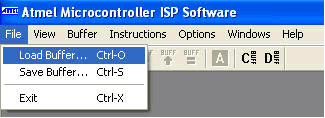
1. Select Load Buffer from the File menu or click on the toolbar. You will see
a dialog similar to Figure 4.

. Microcontroller ATMEL ISP Software
Figure 5. Load Buffer Dialog

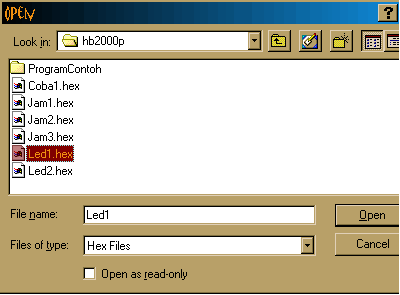
2. Select the HEX file that contains the program you wish to encode onto the chip and click Open.


Microcontroller ATMEL ISP Software

File 6. Open file Hex dialog


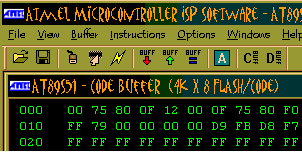
3. The buffers will then be updated with the contents of the hex

Microcontroller ATMEL ISP Software

Figure 7. Update buffer data

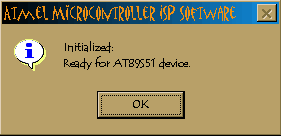
4. Initialize Target

The Initialize Target command sets the device to programming mode. This is needed when swapping devices after already selecting the device in the Atmel ISP Software. Additionally, it is needed when setting the device out of run mode. This command can also be activated by clicking on the toolbar.

Microcontroller ATMEL ISP Software

Figure 8. Initialiazed Device

5. Programming the Device

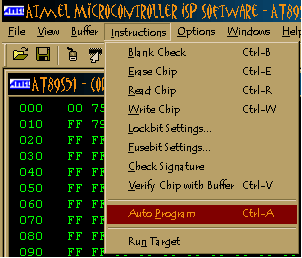
Once the program has been loaded into the buffer(s) the most straightforward way to program the device is to select Auto Program from the Instructions menu (You can also press on the toolbar). Auto program performs all of the most common tasks done when programming a device.

Microcontroller ATMEL ISP Software

Figure 9. Auto Programming sub menu

Auto programming performs the following commands:
• Erases the device
• Writes out buffer(s) to the device
• Verifies programmed device with buffer contents
• Prompts user for lockbit settings (if supported by device)
• Prompts user for fusebit settings (if supported by device)

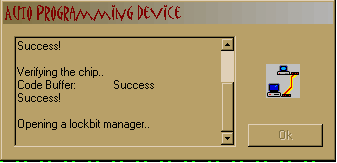
After selecting Auto Program you should see a progress dialog similar to the one
shown in Figure 10.

Microcontroller ATMEL ISP Software

Figure 10 Progress Dialog


Comments, questions and discussion about this topic

BACK NEXT