|
|||
         |
|||
|
Database with Microsoft Access Building Tables
1. Open Microsoft Access. Click on "Blank database". 2. "Access" will now ask where you want to
save the newly created database and what you want to call it. In the "Save
in" text box browse your way to the "macromedia " folder
stored at "database" on your server. In the "File name"
text box name your new database "student.mdb". Hit the "Create"
button. 3. With the "Tables" tag selected, double click on "Create table in design view" as shown below. 4. In the resulting window, enter "Name" in the first column under "Field Name". Click in the blank space under the "Data Type" heading and select "Text" from the drop down menu that appears. Leave all the other settings alone. This enables an ID number to be generated automatically for each new record added to the database 5. Select "Save As" from the "File" menu
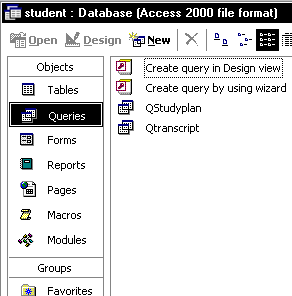
4. With the "Queries" tag selected, double click on "Create query in design view" as shown below.
5. Make a Relationship to connect two table. |
Lesson
1 Creating a Document from Templete. Creating an Editable Region Templete
Creating Tabel Academic Database Creating
Query Academic Database Building Insert Record for Student Data Building
Insert Record For Study Planning Building Edit Records for Study Planning Lesson
4 |
||
copyright
2006 - www.web-database.mytutorialcafe.com |
|||